
M-6750 CORE 2 DUO T5450 3GB RAM & XP PRO
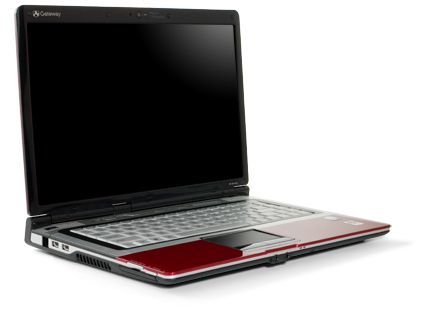
Actual product may vary.
Description
Limited Time Offer! - Gateway M-6750 Core 2 Duo Laptop Notebook Computer With 3GB DDR2 Ram 250GB Hard Drive Windows XP Professional & Much More!
Main Features:
- Gateway M-6750 Core 2 Duo
- Intel® Core™ 2 Duo processor T5450
1.67 GHz | 2 MB L2 cache | 667 MHz FSB - 15.4-inch Ultrabright™ WXGA TFT display
- Intel® GM965 chipset
- 3GB 3072 MB 667 MHz DDR2 memory
- Intel® Graphics Media Accelerator X3100
- 250GB SATA hard drive
- 8X Multi-format Double Layer DVDRW with DVD-RAM with Labelflash
- 5-in-1 Memory card reader
- 1.3 Megapixel webcam
- 56K ITU V.92 ready Fax/Modem
- 802.11n Wireless LAN
- 10/100 Ethernet LAN
- Microsoft Windows XP Professional Loaded & COA
- Recertified Unit
Specifications:
| Processor | Intel Core 2 Duo processor T5450 1.67 GHz | 2 MB L2 cache | 667 MHz FSB |
| Chipset | Intel GM965 |
| Display panel | 15.4-inch Ultrabright WXGA TFT display (1280 × 800) |
| Memory | 3072 MB 667 MHz DDR2 SDRAM (1 × 1024 and 1 × 2048) Operates at 667 MHz Total slots: 2 DDR2 slots | Available slots: 0 DDR2 slots |
| Video controller | Intel Graphics Media Accelerator X3100 Up to 384 MB of Dynamic Video Memory |
| Webcam | 1.3 Megapixel |
| Audio | High definition audio - 2 channel |
| Hard drive | 250 GB 5400 RPM SATA hard drive |
| Optical drive | 8X Multi-Format Dual Layer DVDRW with DVD-RAM with Labelflash Write maximum: 8X DVD +/-R, 6X DVD-RW, 8X DVD+RW, 2X DVD-R DL, 2.4X DVD+R DL, 5X DVD-RAM, 24X CD-R and 16X CD-RW discs Read maximum: 8X DVD-R/RW/ROM, 4X DVD+/-R DL, 5X DVD-RAM, 24X CD-R/RW/ROM discs |
| Modem | Integrated V.92 56K modem |
| Network | 10/100 Ethernet LAN 802.11n Wireless LAN |
| Memory card reader | 5-in-1
MiniSD and RS-MMC (when used with adapter that is supplied with card) |
| Interfaces |
|
| Pointing device | Touchpad with vertical scroll zone |
| Expansion slot | Expresscard Type 54 |
| Battery | 6-cell Lithium-ion |
| Dimensions | 1.1 to 1.50-inches (H) × 14.00-inches (W) × 10-inches (D) 25 to 38.10 mm (H) × 355.60 mm (W) × 254.00 mm (D) |
| Weight | 6.29 pounds 2.85 kilograms |
Additional Photo's:
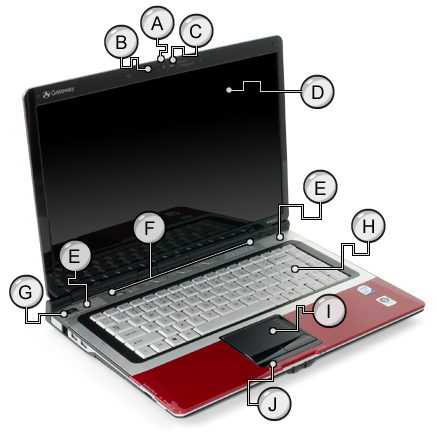
| A. Webcam | Use to allow others to see who they are communicating with when making Voice Over Internet Protocol (VoIP) calls. | |
| B. Microphone | Use for audio on VoIP calls. Note: This microphone is only available on notebooks with the optional webcam. | |
| C. Status indicator | When lit, indicates the optional webcam is in use. | |
| D. LCD display panel | 15.1-inch Ultrabright™ WXGA TFT | |
| E. Speakers | Provide audio output when headphones or amplified speakers are not plugged in. | |
| F. Multimedia panel | Use to control playback of CDs and DVDs. The panel includes a capacitive volume control. | |
| G. Power button |  | Press to turn the power on or off. |
| H. Keyboard | Provides all the features of a full-sized keyboard. | |
| I. Touchpad | Provides all the functionality of a mouse. | |
| J. Status indicators | Informs you when a drive is in use or when a button has been pressed that affects how the keyboard is used. |
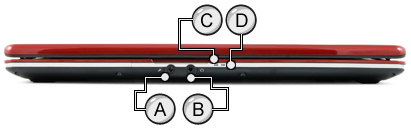
| A. Microphone jack |  | Plug a microphone into this jack. |
| B. Headphone jack |  | Plug amplified speakers or headphones into this jack. The built-in speakers are turned off when headphones are plugged into this jack. |
| C. Power status indicator |
| |
| D. Battery status indicator |
|
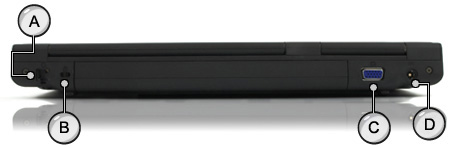
| A. Modem jack |  | Plug a modem cable into this jack. Connecting the Modem Cable |
| B. Kensington™ lock slot |  | The Kensington™ lock connection on the Gateway® notebook allows the computer to be "locked" to items such as a desk. Insert the Kensington lock into this connection and secure the other end of the cable to a solid object. |
| C. VGA port |  | Plug a VGA cable into this port to connect to an external monitor or projector. Viewing the Display on an External Monitor, TV, or Projector |
| D. AC power connector |  | Plug the AC adapter cable into this connector. Connecting the AC adapter |
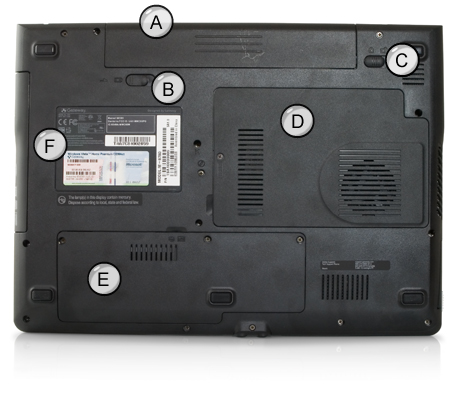
| A. Battery | This battery was shipped partially charged. Use the AC adapter right away to charge the battery. Allow three hours for the battery to fully charge. Closely monitor the battery charge. When the battery charge gets low, change the battery or connect to AC power immediately to prevent losing any unsaved work. If your notebook unexpectedly goes into Standby mode while you are using it but the battery charge is not low, you may need to recalibrate your battery. You should also recalibrate the battery periodically to maintain the accuracy of the battery gauge.
| |
| B. Battery latch |  | Unlock the battery and then slide this latch to release the battery. |
| C. Battery lock |  | Slide the battery lock to the locked position when the battery is installed. |
| D. Memory bay |  | This notebook uses DDR2 Small Outline Dual Inline Memory Modules (SO-DIMMs). Two sockets are located in this bay. |
| E. Hard drive bay |  | The hard drive bay is accessed from the bottom of the notebook. If you would like more hard drive capacity, you can replace your original drive with a higher-capacity drive. |
| F. Customer Care labels | | The labels include information that identify your notebook and features. |
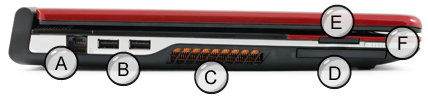
| A. Ethernet jack |  | The network jack can be used to connect to a 10/100 wired Ethernet network. You can use the computer's Ethernet jack for more than just networking. Many broadband Internet connections, such as cable modems and DSL modems, connect to the Ethernet jack. Connecting to a Wired Ethernet Network
|
| B. Universal Serial Bus ports (USB ports) |  | The USB ports are version 2.0 ports. Plug USB devices (such as a floppy disk drive, flash drive, printer, scanner, camera, keyboard, or mouse) into these ports. USB ports support plug-and-play and hot swapping, which means that your computer usually recognizes such a device whenever you plug it into the appropriate port. When you use an USB device for the first time, your computer prompts you to install any software the device needs. After doing this, you can disconnect and reconnect the device at any time. |
| C. Ventilation fan | Helps cool internal components. Warning: Do not work for long periods with the notebook resting on your lap. If the air vents are blocked, the notebook may become hot enough to harm your skin. Caution: Do not block or insert objects into these slots. If these slots are blocked, your notebook may overheat resulting in unexpected shutdown or permanent damage to the notebook. Caution: Provide adequate space around your notebook so air vents are not obstructed. Do not use the notebook on a bed, sofa, rug, or other similar surface. | |
| D. ExpressCard Slot | Insert one Type 54 ExpressCard into this slot. Using an ExpressCard | |
| E. Memory card reader |  | Insert a memory card from a digital camera, MP3 player, PDA, or cellular telephone into the memory card reader. The memory card reader supports Memory Stick®, Memory Stick Pro®, MultiMediaCard™, and Secure Digital™ Using a Memory Card Reader |
| F. Wireless network switch |  | Turn the optional IEEE 802.11 wireless network radio and optional Bluetooth radio on or off. Note: The wireless network switch turns on both the optional wireless LAN and optional Bluetooth. The switch must be turned on for the wireless LAN and Bluetooth function keys to work (Fn+F2 for wireless and Fn+F6 for Bluetooth). If you have turned on the wireless network switch and then used a function key to disable one of the functions, the option selected remains until the wireless network switch is turned on and the function key is once again used to change the setting. For example; if you have turned on the wireless network switch to enable the wireless LAN and Bluetooth, and then used the Fn+F6 function to disable the just the Bluetooth option, even after turning the wireless switch off and then back on, the Fn+F6 function key must be used to enable the Bluetooth option again. |

| Optical drive | Insert CDs or DVDs into this drive. | |
| B. Universal Serial Bus port (USB port) | | The USB ports are version 2.0 ports. Plug USB devices (such as a floppy disk drive, flash drive, printer, scanner, camera, keyboard, or mouse) into these ports. USB ports support plug-and-play and hot swapping, which means that your computer usually recognizes such a device whenever you plug it into the appropriate port. When you use an USB device for the first time, your computer prompts you to install any software the device needs. After doing this, you can disconnect and reconnect the device at any time. |