
PXN 2119 Pro Flight Simulator Joystick
Qty:
Item Code GMGJSTC2119PROA
Brand Pxn
Model 2119 Pro
Category Game Controllers
Condition Like New Grade A
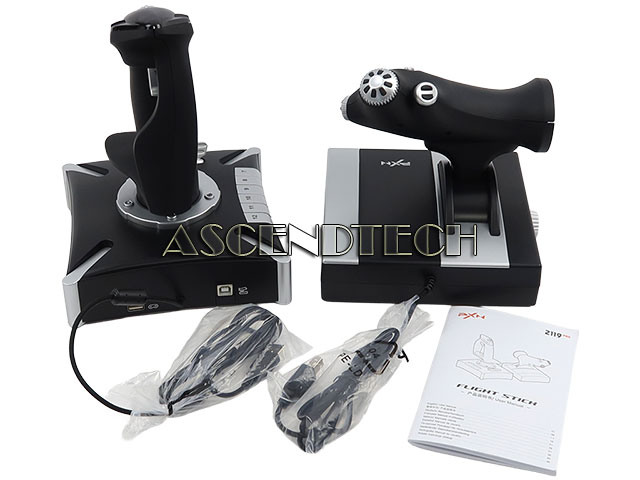
Condition Description Please note, this set include: Flight Joystick Unit, Throttle Control Unit and User Manual. No other accessories!
Description
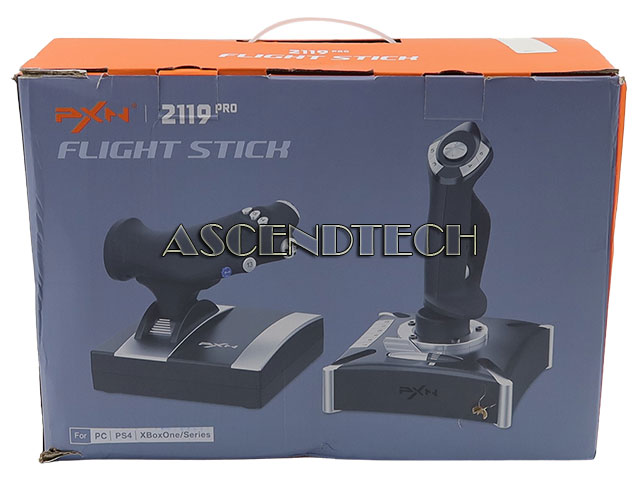
PXN 2119 Pro PC PS4 XBox One Series Flight Simulator Joystick and Throttle Control.
Color: Black
Type: Joystick and Throttle Control
Supported Operating System: PC, PS4, XBox One/Series
Features: Realistic Dual-Vibration & Immersive Simulation : Built-in dual vibration motors deliver authentic airflow, turbulence, and engine feedback for lifelike flight immersion. The separate throttle unit with damping feel lets you precisely control engine power, matching real-aircraft operation for Microsoft Flight Simulator, War Thunder, and more. Wide Multi-Platform Compatibility : Wired USB connection works with PC (Windows XP/7/8/10), Compatible with most top flight simulators including X-Plane, Air Combat, World of Warplanes, and Lock On: Flaming Cliffs 3. Plug-and-play ready with simple driver setup for full features. Full Customization & Programmable Controls : 16 fully programmable function keys + 8-way POV hat switch + rapid-fire trigger support key mapping via driver software. Three mode expansion and 4-axis precision let you tailor every control to your playstyle, ideal for casual pilots and simulation enthusiasts alike. Ergonomic & Stable Design for Long Sessions : Ergonomic grip with intuitive button layout reduces hand fatigue during extended flights. Heavy-duty base with strong suction cups locks firmly to desks, eliminating sliding for steady, accurate maneuvers. Joystick unit can be used independently for flexible setup. PRECAUTIONS : After connecting the computer USB, if the computer cannot recognize the PXN-2119 Pro, please download the PXN-2119 Pro driver. If the connection is successful but the buttons do not work, you need to enter the game settings page in the game and select the joystick mode. For the settings of "Microsoft Flight Simulator 2020", you can view the detailed setting steps in E-PXN Official Website - Service - Joystick Game button settings X-Plane 11.